
PHOTO ANALYSIS · INVITE-ONLY BETA
AI photo critique with a Lightroom editing plan
Get a considered review of one photograph, understand what to improve, and download an XMP preset based on its Lightroom editing plan. Apply the preset yourself and finish the image with your own judgment.
Full analysis requires a PhotoMind beta account. Selected testers are invited gradually from the waitlist. Beta invitations currently include 10 credits; one completed review uses one credit and failed runs are not charged.
What a photo analysis includes
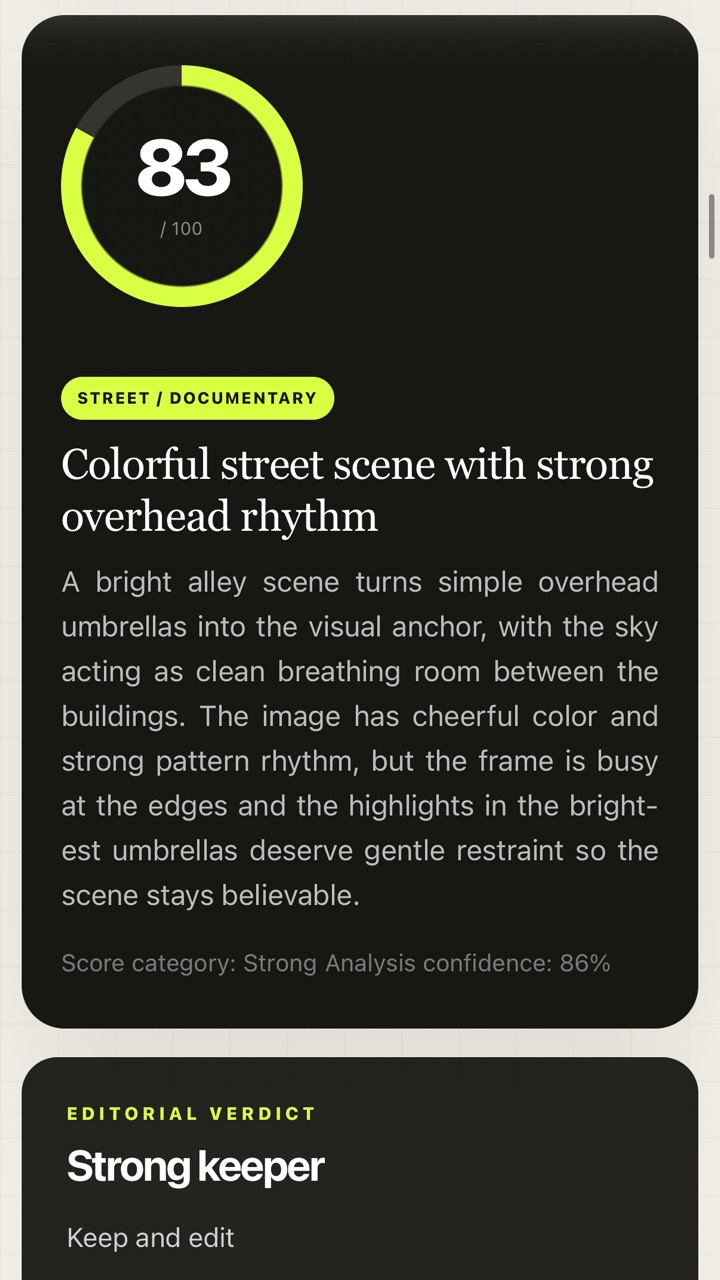
- Score and editorial verdict. A summary of the photo's strengths, weaknesses and readiness, with reasons behind the judgment.
- Technical review. Discussion of the visible exposure, detail, noise, light and color issues that matter to the image.
- Creative feedback. Composition, subject impact, mood and storytelling considered against the intention you provide.
- Editing priorities. An order of work, crop suggestions and cleanup guidance to help you concentrate on changes that matter.
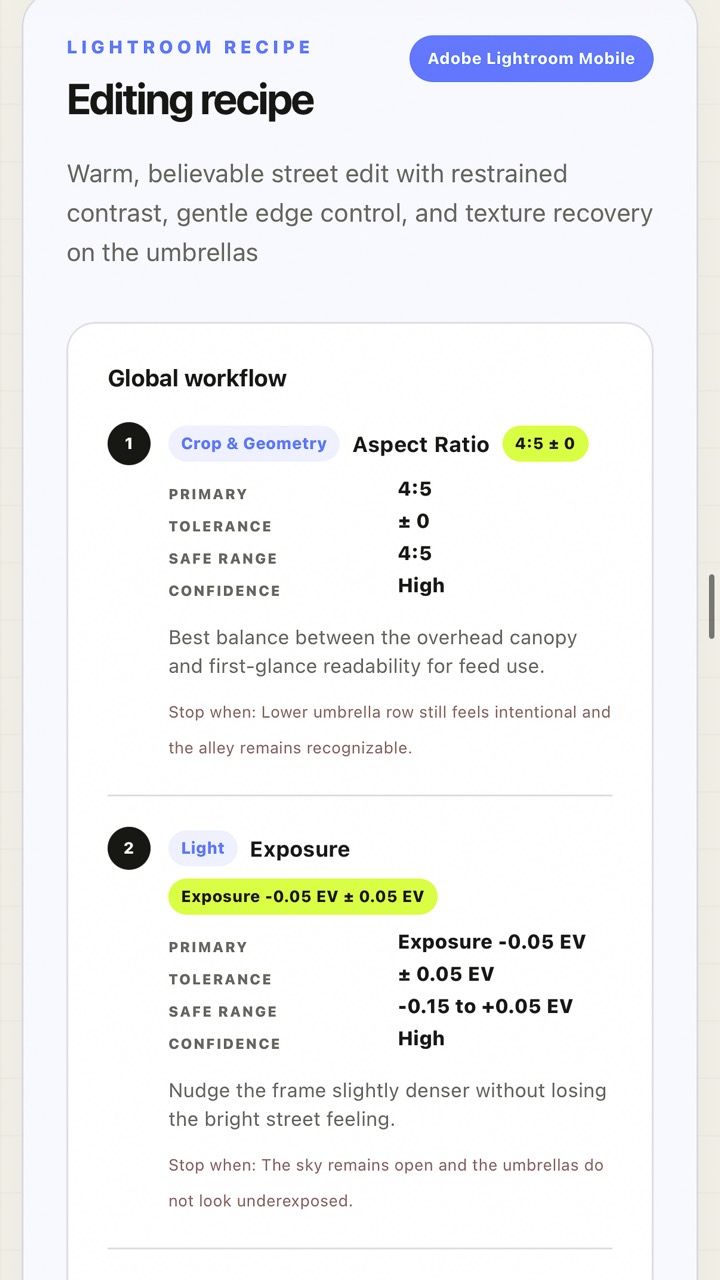
- Lightroom recipe. Step-by-step global and local adjustments, with value ranges and stop conditions where appropriate.
- Downloadable outputs. The report, a PDF export and an XMP preset compiled from the supported settings in the recipe.
The scores express an AI assessment of this photograph and brief. Use the explanations to inform your decisions, especially when your own creative intention calls for a different result.
From upload to finished edit
- Upload one photograph. Use a JPEG, PNG, WebP or supported RAW file. Choose the original file you intend to edit.
- Add a Photo Brief. Describe the evaluation goal, capture priorities, final use, edit style and strength. Set masking intensity and the qualities you want to protect or avoid. An optional note adds your own direction.
- Run the analysis. Read the verdict, technical review and editing priorities together. Check whether the suggested direction fits your intention.
- Download the XMP. Save the preset from the report, import it into Lightroom or Camera Raw, and apply it to the photograph you analysed.
- Review and finish. Inspect the adjustments and masks, refine their strength, and apply crop or cleanup advice manually. Export the finished photograph from your editor.
The Photo Brief guide explains the choices with examples. You can start with the free Palette Guide and carry its color direction into the analysis.
What the XMP preset carries
The XMP provides supported global adjustments from the report, including light, white balance, color mixing, effects and detail. Where the recipe calls for them, it can also carry supported local masks: Subject, Sky, Background, Linear Gradient, Radial Gradient and Brush, including add/subtract combinations.
Lightroom recalculates AI selections such as Subject and Sky on your photograph. Inspect each selection and refine it when needed. Crop and healing or cleanup remain written advice to apply manually; the preset is a starting point for the edit.
Follow the XMP import guide for Lightroom Mobile, Lightroom Desktop, Lightroom Classic or Adobe Camera Raw. You need your own compatible Adobe editing application to apply the preset.
Choosing a file and using RAW
Rendered JPEG, PNG and WebP files up to 25 MB work for phone photographs and exported images. Signed-in beta users can also analyse RAW files up to 60 MB: DNG, CR2, CR3, NEF, ARW, RAF, RW2, ORF, SRW and PEF. RAW analysis uses a rendered preview and available metadata. RAW support depends on the file and camera format, so use the upload result to confirm that PhotoMind can process yours.
Apply the XMP to the same photograph and file type that you analysed. In particular, a preset made from a JPEG report can produce an unexpected white balance if applied to a RAW file. Keep your original locally for editing and review the result in your Adobe application.
How Send to Lightroom fits in
For eligible JPEG photos or supported RAW originals and connected beta accounts, Send to Lightroom can export the original photo to the PhotoMind Edits album in your Lightroom cloud catalog. You still download and import the XMP separately to apply the editing plan. The transfer does not attach the develop settings to the photograph. Sending a RAW original requires the matching original file to remain selected in your session. A restored RAW report may instead offer an explicitly labelled JPEG preview.
Access, credits and free alternatives
To request beta access, join the waitlist on the home page and confirm your email. Invitations go to selected testers gradually. There are no paid analysis packages or subscriptions available to purchase at present.
A beta invite currently includes 10 credits. One credit is used per completed review; a failed run is not charged. The Palette Guide and Reference Match check are free public tools without an account. Generating the optional target-adapted Reference Match recipe and XMP requires a beta account and uses one credit.
Privacy and keeping your results
Original uploads are not permanently stored. A reduced preview, report and XMP may remain in your account history for up to 15 days. Download results you want to keep; the account panel also provides data export and deletion. The Privacy Policy explains the current data handling.
For compatibility or beta questions, read the FAQ or email support@photomind.app. PhotoMind's interface, reports and support are in English.